
Instagram Post Maker 2026 Complete Guide
Use Instagram Post Maker online free to create square posts, portrait posts, stories, and reels sizes from one image. Fast, easy, and free with PixelCraftTools.
Instagram Post Maker Free Multi-Format Creator
Create Instagram posts, portrait posts, stories, and reels covers from one image in seconds.
Upload Your Image to Create Instagram Posts
Supports JPG, PNG, WEBP, SVG • Maximum 20MB
TARGET SIZE
Perfect Instagram Sizes
Create properly sized square posts, portrait posts, and story or reels images.
Instant Processing
Generate multiple Instagram-ready formats instantly in your browser.
100% Private
Your image stays in your browser during processing for better privacy.
Batch Download
Download individual images or all selected Instagram formats in one ZIP file.
Create Instagram Content Faster with One Image
If you create content for Instagram regularly, one of the biggest time-wasters is resizing the same visual again and again for different placements. A square feed post needs one layout, a portrait post needs another, and Stories or Reels need a full vertical format. That is exactly where Instagram Post Maker helps.
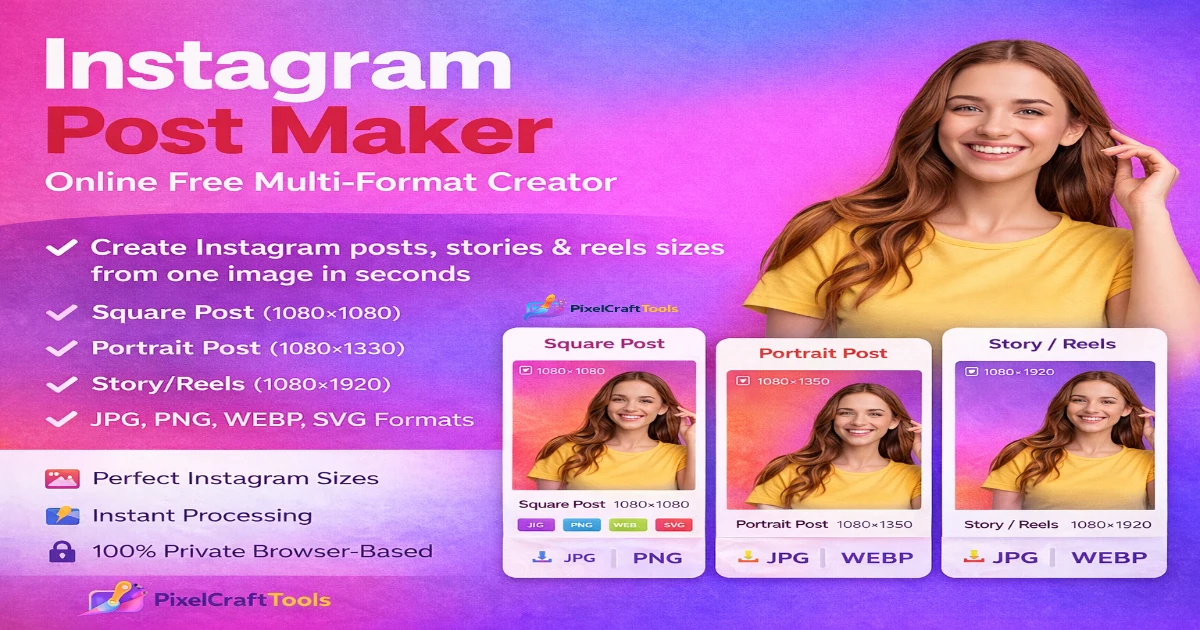
With PixelCraftTools Instagram Post Maker, you can upload one image and turn it into multiple Instagram-ready sizes in just a few clicks. Instead of editing manually in separate apps, you can generate the formats you need in one place and download them in your preferred output type.
This tool is especially useful for creators, bloggers, ecommerce stores, marketers, agencies, and small businesses that want a quicker publishing workflow without opening heavy design software.
Improve your source visual before export with the Image Resizer Tool
Why Instagram Image Sizing Still Matters
A strong image can lose impact if the sizing is wrong. On Instagram, poor sizing often leads to awkward cropping, unnecessary empty space, reduced readability, or a weaker visual impression in the feed. Meta’s placement guidance highlights the importance of consistent aspect ratios such as 1:1, 4:5, and 9:16 for cleaner presentation across placements.
When your visuals are prepared in the right dimensions, your content usually looks cleaner, more intentional, and more professional. That matters whether you are posting product highlights, personal brand content, educational graphics, quote cards, event promotions, or campaign creatives.
What This Instagram Post Maker Does
The tool is designed to simplify the process of preparing visuals for Instagram by converting one source image into multiple optimized layouts.
You can use it to create:
Square Posts
A square post is the classic Instagram format and still works well for product images, motivational quotes, tutorials, and carousels.
Portrait Posts
Portrait posts take up more vertical space in the feed, which can make them visually stronger and easier to notice while scrolling.
Story and Reels Sizes
Vertical 9:16 formats are ideal for Story covers, promo visuals, and image-based Reels assets.
These are the layout types most creators need regularly, which makes the tool practical rather than bloated.
Key Features of PixelCraftTools Instagram Post Maker
One Upload, Multiple Outputs
Upload a single image and generate multiple Instagram-ready sizes without repeating the same task several times.
Format Options
The tool supports exports in:
- JPG
- PNG
- WEBP
- SVG
That gives users flexibility depending on whether they want a standard image, a higher-clarity graphic export, a modern compressed format, or an SVG wrapper output.
Target File Size Options
The tool includes target size options such as:
- 10K
- 20K
- 50K
- 100K
- 200K
- Custom
This helps users create lighter files for speed-conscious publishing, previews, or workflows where file weight matters.
Browser-Based Convenience
The workflow is simple and fast, which is ideal for users who want results without installing software.
Download-Ready Output
Once the image is processed, you can preview and download the size you want immediately.
Reduce output weight with the Compress Image Tool
Who Should Use This Tool
This tool is useful for a wide range of users.
A content creator can use it to turn one graphic into a post and a Story version. A business page can use it to prepare sale banners and promo visuals quickly. A blogger can use it to create branded Instagram graphics for article promotion. A seller can prepare product visuals in different feed-friendly layouts.
It is also useful for freelancers and agencies that manage multiple social accounts and need faster production without sacrificing visual consistency.
Best Instagram Formats to Create
The tool is built around practical Instagram publishing needs, not unnecessary extras.
Square Format
Square images remain one of the safest choices for balanced feed presentation. They are especially useful when you want a neat, symmetrical appearance.
Portrait Format
Portrait images often feel stronger in the feed because they take up more vertical space. This can help visual prominence during scrolling.
Story / Reels Format
For full-screen vertical experiences, 9:16 is the most useful layout. It fits Story and Reels-style presentation much better than cropped feed-sized designs. Meta’s guidance across placements repeatedly supports vertical creative formats where 9:16 is recommended for full-screen experiences.
How to Use Instagram Post Maker
Using the tool is simple.
Step 1: Upload Your Image
Start by uploading the image you want to use. The tool accepts common image types including JPG, PNG, WEBP, and SVG.
Step 2: Choose Output Format
Pick the format that best fits your use case. JPG is often a good choice for standard photography. PNG is helpful for graphics and cleaner edges. WEBP can help reduce file size. SVG is available for compatible workflows.
Step 3: Select Target Size
Choose one of the preset target size options or enter a custom value.
Step 4: Generate Instagram Sizes
The tool prepares the selected Instagram layouts for you.
Step 5: Preview and Download
Review the results and download the files you need.
This workflow is fast enough for everyday publishing and simple enough for beginners.
Create lighter modern files using the Convert Image to WebP Tool
Which Output Format Should You Choose?
The best output format depends on the type of visual you are creating.
JPG
Best for general-purpose Instagram image uploads, especially photographs and lifestyle visuals.
PNG
Best when you want sharper graphics, clean text overlays, or design-heavy layouts.
WEBP
Best when you want a modern compressed image format with smaller file sizes.
SVG
Best for certain workflow needs where a scalable wrapper format is useful, though users should still review compatibility depending on how they plan to use the exported file.
Why File Size Matters for Social Media Creators
Large files can slow down your workflow, take longer to upload, and be harder to manage in bulk content pipelines. Smaller optimized files are often easier to organize and publish, especially when you prepare visuals for multiple platforms at once.
That is why target size control is a valuable feature. Instead of exporting random file weights, you can choose a more intentional balance between image quality and file size.
For many everyday publishing needs, 50KB to 200KB is a practical range depending on the visual style and level of detail. The best choice depends on whether the image is photo-based, text-heavy, or graphic-focused.
Practical Tips for Better Instagram Visuals
A good resizing tool helps, but content design still matters.
Keep your main subject centered when possible. Leave some safe space around headlines or important text. Avoid placing critical elements too close to the edges. Choose readable font sizes for mobile viewers. Use strong contrast if your image contains text or calls to action.
Also, create with the final placement in mind. A Story graphic should not be designed exactly like a square feed post. Even if the same brand style is used, the layout should match the viewing experience.
Why This Tool Fits PixelCraftTools Perfectly
PixelCraftTools is already positioned around practical image utilities, so an Instagram-specific maker fits naturally into the brand.
Instead of offering a generic editor with too many features, this tool solves a very specific and high-demand problem: turning one image into the most useful Instagram sizes quickly.
That makes it a strong fit for both SEO traffic and real user value.
Smart Workflow: Use It with Other PixelCraftTools
This tool becomes even more useful when combined with your other image tools.
Start by preparing the source visual with the Image Resizer Tool if needed. Reduce extra weight with the Compress Image Tool. Use the Convert Image to WebP Tool if you want a smaller modern format. Clean up cutouts and creatives with the Background Remover Tool.
Together, these tools create a complete publishing workflow for creators and marketers.
Prepare cleaner creative assets with the Background Remover Tool
Content Quality, Search, and User Experience
Google’s search guidance consistently emphasizes people-first content, strong page usefulness, and good image practices, rather than thin pages built only for ranking. Good image pages should be useful, easy to understand, and supported by solid page experience and image SEO basics.
That is why this page should be positioned as a genuinely helpful utility page with clear explanations, relevant FAQs, practical tips, and clean internal linking rather than as a keyword-stuffed article.
Copyright and Usage Responsibility
Users should only upload images they own, have permission to use, or are legally authorized to edit. For AI-assisted or generated visuals, copyright and ownership questions can be more complex, and the U.S. Copyright Office has published updated guidance specifically addressing AI-related copyrightability and policy issues.
That makes it important to review commercial-use rights, source ownership, brand usage, and licensing before publishing or monetizing any exported image.
Frequently Asked Questions (FAQ)
Is Instagram Post Maker free to use?
Yes, the tool is designed as a free online utility for creating multiple Instagram-ready sizes.
Which Instagram formats can I create?
You can create square posts, portrait posts, and Story / Reels-style vertical images.
Does the tool support JPG, PNG, WEBP, and SVG?
Yes, these format options are included in the tool workflow.
Can I control file size?
Yes, the tool includes preset target size options and a custom option.
Do I need Photoshop or Canva for this?
No. This tool is meant to simplify the resizing and export process directly in your browser.
Is WEBP good for Instagram workflows?
WEBP can be useful for lightweight image management and efficient exports, especially in broader web publishing workflows.
Is SVG output a fully traced vector file?
No. In this workflow, SVG functions more like a generated wrapper output rather than a hand-traced vector illustration.
Conclusion
If you publish on Instagram often, resizing images manually can become repetitive very quickly. A dedicated tool saves time, keeps your workflow cleaner, and helps maintain consistency across feed posts, portrait posts, Stories, and Reels visuals.
Instagram Post Maker by PixelCraftTools is built for that exact purpose. It helps you turn one image into multiple Instagram-ready formats quickly, with flexible export options and file-size control built in.
For creators, brands, bloggers, and marketers, it is a practical tool that solves a real publishing problem without unnecessary complexity.
Official References
1. Meta Business Help Center – Best Practices for Aspect Ratios Across Placements
Meta provides guidance on recommended image aspect ratios for social media placements such as square (1:1), portrait (4:5), and vertical (9:16). These recommendations help content display properly across feeds, stories, reels, and advertising placements.
2. Meta Business Help Center – Design Specifications for Carousel Ads
Meta outlines recommended creative sizes, image formats, ratios, and design specifications for carousel-style content and ad placements. Useful for marketers creating multi-image campaigns.
3. Google Search Central – Creating Helpful, Reliable, People-First Content
Google explains how to build content primarily for users rather than search engines. Covers quality signals, trustworthiness, originality, usefulness, and long-term helpful content principles.
4. Google Search Central – Image SEO Best Practices
Google shares best practices for optimizing images for search, including descriptive filenames, alt text, crawlability, responsive images, structured data, and improving visibility in Google Images.
5. Google Search Central – SEO Starter Guide & Search Essentials
Google’s official beginner and foundational SEO resources covering indexing, crawlability, technical SEO, site structure, quality guidelines, spam avoidance, and ranking readiness.
6. U.S. Copyright Office – Copyright and Artificial Intelligence Resources
Official resources discussing copyright considerations involving AI-generated content, authorship standards, registration guidance, and policy developments related to AI outputs.
Disclaimer
General Information Disclaimer
This page and tool are provided for informational and educational purposes only. While we aim to offer accurate and useful image sizing, formatting, and optimization tools, results may vary depending on browser behavior, uploaded image quality, device limitations, and selected settings.
Users are responsible for reviewing all exported files before publishing, commercial use, or advertising campaigns.
Google AdSense & Policy Notice
This content is created to provide helpful, user-focused utility information and practical tools. It is not intended to mislead users, manipulate search rankings, or violate advertising platform policies.
Any ads shown on this website are served independently and may be subject to platform review, relevance systems, and advertiser policies.
Copyright & Intellectual Property Notice
Users must only upload or process files they own, created themselves, or are legally authorized to use.
PixelCraftTools does not claim ownership of user-uploaded content. All logos, trademarks, brand assets, and copyrighted works remain the property of their respective owners.
Users are solely responsible for ensuring legal rights, permissions, licensing, and compliance before publishing processed images.
AI Output Notice
If AI-assisted or automated image generation, resizing, or formatting features are used, outputs may vary based on system processing and uploaded source files.
Users should manually review final outputs before commercial, legal, public, or monetized use.
No Legal or Professional Advice
Nothing on this page constitutes legal, copyright, tax, marketing, or professional advice. For specific issues, users should consult qualified professionals or official platform documentation.
Third-Party Brand Notice
Instagram, Facebook, Meta, Google, YouTube, TikTok, Pinterest, X, and other brand names may be referenced strictly for compatibility or educational purposes. PixelCraftTools is not affiliated with or endorsed by these companies unless explicitly stated.
Limitation of Liability
By using this tool, you agree that PixelCraftTools shall not be liable for any losses, rejected ads, policy actions, account issues, image errors, business interruptions, or damages resulting from the use of this tool or exported files.