
Instantly Replace Dull Backgrounds With Clean, Attractive Colors For Product Photos And Listings
Use our Change Background Color tool to quickly refresh transparent PNG images, cutouts, product photos, and design elements with a clean new background. Upload your file, choose a color, preview the result, and download in seconds.
No software installation, no complicated editing steps, and no signup required. Everything works directly in your browser for a fast and simple experience.
Change Background Color
Change image background color online free. Upload your image, apply a clean color background, and download it in seconds.
Instantly Change Image Background Color With AI
The background color of an image can have a major impact on how professional, clean, and eye-catching it looks. A simple color change can help products stand out, improve branding consistency, and make graphics more suitable for websites or social media platforms.
Our free Change Background Color tool is designed to make this process quick and beginner-friendly. Instead of learning advanced editing software, you can update your image background in just a few clicks.
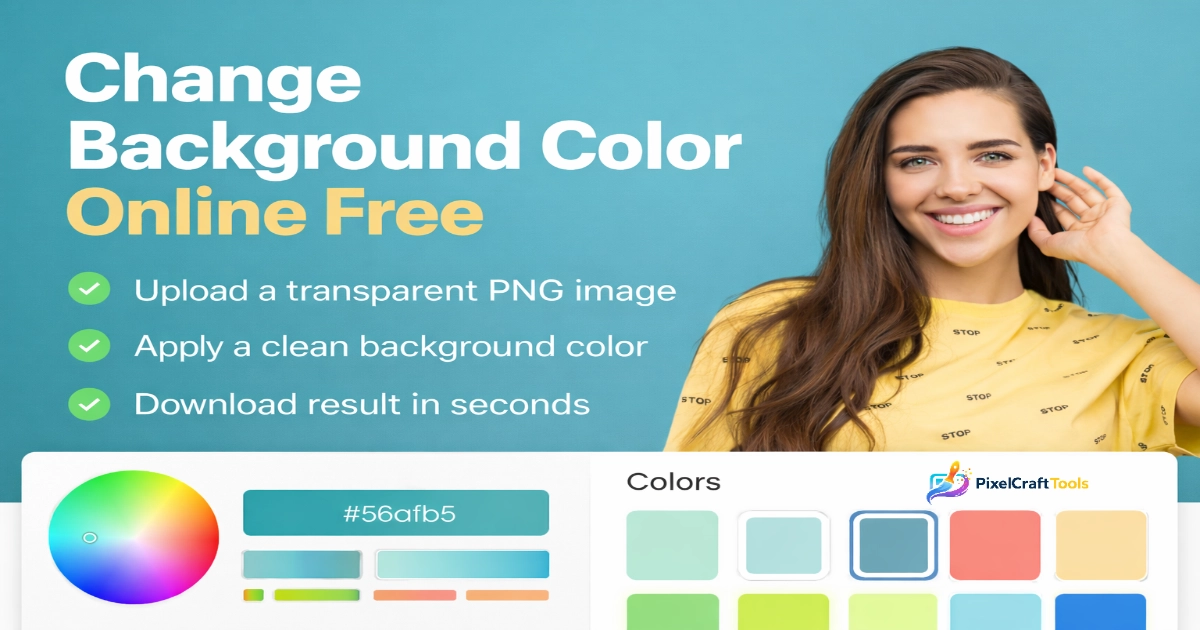
How It Works
- Upload your PNG image, transparent cutout, or supported graphic.
- Select the new background color you want to apply.
- Preview the updated image instantly.
- Download the finished file in seconds.
Great For Many Uses
- Product photos for ecommerce stores
- Marketplace listings
- Logo presentations
- Social media graphics
- Brand color consistency
- Quick promotional visuals
Why Use This Tool?
- Fast browser-based editing
- No design skills required
- Clean and simple workflow
- Beginner friendly interface
- Helpful for personal and business use
Before changing colors, you can use the Image Resizer Tool to adjust image dimensions and prepare files for editing, websites, or social media platforms.
How to Change Background Color Online
Using the Change Background Color tool is quick and beginner-friendly. You can refresh product images, logos, and graphics in just a few simple steps.
Step 1: Upload Your Image
Select an image from your device and upload it directly in your browser. Supported formats may include PNG, JPG, and WebP depending on the file type.
Step 2: Select a Background Color
Choose a background color from ready-made presets or use the color picker to create a custom shade that matches your brand or style.
Step 3: Apply Background Color
Click the action button to instantly update the image with your selected color. The preview allows you to see changes before downloading.
Step 4: Download Your Image
Once satisfied with the result, download the final image in high quality for personal, business, or creative use.
Why This Process Is Useful
The Change Background Color tool helps users complete simple edits without needing complex design software or advanced editing skills.
Best Use Cases
The Change Background Color tool can be useful in many everyday design and ecommerce situations.
Ideal For:
- Transparent PNG images
- Product cutout images
- Logos and brand graphics
- Social media posts and promotional creatives
- Ecommerce product listings
- Icons and design assets
- Presentation graphics
- Website banners and simple visuals
After editing your image, you can improve website speed and reduce file size with the Convert Image to WebP Tool for faster online performanc
Important Note (User Clarity Section)
👉 For the best experience with the Change Background Color tool, use transparent PNG images whenever possible.
Transparent PNG files allow a new background color to appear cleanly behind the subject, logo, or cutout image.
If your file already contains a built-in background, such as many JPG photos, the selected color may be placed behind the existing image area, but the original background itself will not be automatically removed.
For non-transparent images, background removal may be needed first before applying a fresh color background.
Why Use This Tool
The Change Background Color tool is designed to make simple image edits fast, easy, and accessible for everyone.
✔ No Software Required
Everything works directly in your browser without installing heavy editing programs.
✔ Fast Processing
Quick results with a simple workflow and no unnecessary steps.
✔ Free to Use
Use the tool without subscriptions, complicated registrations, or hidden setup requirements.
✔ Privacy Friendly
Image processing is handled locally in your browser for editing functions, helping reduce the need for external uploads where supported.
✔ Beginner Friendly
No design experience is required to create cleaner product images or updated graphics.
Difference Between Background Color & Background Removal
Many users confuse these two image editing tasks, but they serve different purposes.
Background Color Change
- Adds a new color behind the image
- Works best with transparent PNG files
- Useful for product listings, logos, and graphics
- Fast and simple visual refresh
Background Removal
- Removes the original background from an image
- Usually requires advanced detection or AI processing
- Commonly used for cutouts and subject isolation
- Often needed before changing colors on JPG photos
The Change Background Color tool focuses on applying a new background color. It does not automatically remove existing backgrounds in standard photos.
When You Should Use AI Background Removal
The Change Background Color tool is ideal for transparent images, logos, icons, and cutout graphics. However, if your image already has a full background—such as a person photo, room scene, or product shot on a surface—you may first need background removal.
In These Cases, Consider:
- AI background remover tools
- Cutout tools for isolating subjects
- Object isolation tools for cleaner edits
- Subject extraction before applying a new color background
This extra step can help create a more professional final result before using the Change Background Color tool.
👉 Advanced cutout features may be added in future versions depending on tool development.
Image Optimization Workflow (PRO LEVEL)
For the best final image quality and website performance, many users combine multiple editing steps instead of using only one tool.
Recommended Workflow
👉 Resize images before editing
👉 Convert images to WebP for faster loading
👉 Use transparent PNG files for cleaner design control
👉 Apply a fresh background color for final presentation
👉 Compress large files for easier sharing and faster performance
This creates a more complete and efficient image optimization workflow for websites, ecommerce stores, and social media content.
Reduce file size while maintaining quality with the Compress Image Tool after editing.
Performance & SEO Benefits
Using optimized images with cleaner backgrounds can improve both user experience and technical website performance.
Potential Benefits
- Faster page loading speeds
- Better mobile browsing experience
- Cleaner visual presentation
- Stronger product trust and conversions
- Lower file sizes and bandwidth use
- Improved website SEO foundations
Well-prepared visuals often perform better across landing pages, ecommerce stores, and content websites.
Content Quality & Compliance
This tool and supporting content are designed with a focus on clarity, usefulness, and genuine functionality.
The page aims to provide practical value without misleading claims, fake promises, or confusing user experiences. It is structured to align with modern people-first content principles and quality-focused publishing standards.
AI & Content Responsibility Notice
The current version of the Change Background Color tool does not use AI background removal technology.
Instead, it applies a user-selected color behind supported image formats where applicable. It is designed for simple background color changes rather than automatic subject extraction.
Users are responsible for ensuring they have permission to edit, upload, and use any images processed through the tool.
For automatic cutouts or subject isolation, try the Background Remover Tool when available.
Conclusion
Changing the background color of an image does not need to be complicated.
With this free online tool, you can quickly enhance your visuals, improve presentation, and create clean designs for personal or professional use.
For best results, use transparent PNG images and combine this tool with other image optimization techniques.
References & Source Transparency
To ensure accuracy, credibility, and compliance with modern web standards, this content is supported by high-authority sources and official guidelines. These references help maintain transparency, reliability, and alignment with search engine best practices.
Google Helpful Content Guidelines
📚 Source: Google emphasizes creating content that is written for users first, not just for search engines. According to these guidelines:
- Content should provide real value and usefulness
- Avoid misleading or exaggerated claims
- Focus on experience, expertise, authoritativeness, and trust (E-E-A-T)
- Ensure clarity, originality, and accuracy
👉 This article follows these principles by providing clear instructions, realistic tool capabilities, and honest limitations of the background color tool.
Google Image SEO Best Practices
📚 Source: Google recommends optimizing images for both users and search engines. Key practices include:
- Using properly optimized image formats (PNG, WebP, JPEG)
- Improving page speed through optimized images
- Providing high-quality visuals for better user experience
- Ensuring images are relevant to the content
👉 This tool supports image optimization workflows by allowing users to enhance visuals with clean background colors, improving presentation and usability.
U.S. Copyright Office – AI & Digital Content
📚 Source: The U.S. Copyright Office provides guidance on AI-generated and edited content. Important points include:
- Users are responsible for ensuring they have the right to use and modify images
- AI-assisted or edited images may have copyright considerations
- Not all generated content is automatically protected
👉 Users should review and verify their images before using them commercially, especially when modifying or redistributing digital content.
Creative Commons Licensing Guidelines
📚 Source: Creative Commons provides standardized licensing for sharing and reusing creative works. Key takeaways:
- Some images require attribution before use
- Licensing terms vary (commercial use, modification, distribution)
- Always verify license type before using any third-party content
👉 When using images in this tool, ensure you follow proper licensing rules if the image is not originally yours.
Why These References Matter
These sources help ensure that:
- Content remains accurate and trustworthy
- Users receive transparent and honest information
- The tool aligns with Google search quality standards
- Legal and ethical considerations are clearly communicated
Content Integrity Statement
This content is created with a focus on:
- Clarity and usability
- Honest representation of tool functionality
- Avoidance of misleading claims
- Alignment with modern SEO and content policies
Final Note
All users are encouraged to:
- Use images responsibly
- Respect copyright and licensing rules
- Optimize images for both performance and qualit
Frequently Asked Questions (FAQs)
Can I change background color of any image?
Yes, but best results come with transparent PNG images. JPG images with existing backgrounds will not be automatically removed.
Is this tool completely free?
Yes, this tool is free to use with no signup required.
Does this tool remove background automatically?
No, this version only applies a background color. AI background removal is not included.
What image formats are supported?
PNG, JPG, JPEG, and WebP formats are supported.
Is my image uploaded to a server?
No, basic editing is processed locally in your browser for privacy.
Disclaimer
Educational & Usage Disclaimer
This tool and content are provided for informational and practical use only. While every effort has been made to ensure accuracy and usability, results may vary depending on the type and quality of the uploaded image.
This tool is designed to apply background colors and works best with transparent PNG images. It does not perform automatic AI-based background removal in its current version.
Image Ownership & Responsibility
Users are responsible for ensuring that they have the legal rights to upload, edit, and use any images processed through this tool.
Do not upload or modify images that:
- Violate copyright laws
- Contain protected or licensed content without permission
- Are owned by third parties without proper authorization
No Guarantee of Results
This tool provides a simple background color application feature. It does not guarantee:
- Perfect background replacement for non-transparent images
- Professional-level editing for complex images
- AI-based cutout accuracy
For advanced editing (such as automatic background removal), dedicated AI tools may be required.
Privacy & Data Handling
Basic image processing is designed to be lightweight and user-focused. Users should avoid uploading sensitive or personal images unless they fully understand how they will be used.
Content Transparency
This content is created to provide clear and honest guidance without misleading claims.
No exaggerated promises or unrealistic results are presented.